Your profile
Once your organization is on-boarded, you’ll receive access to the X3 Cloud portal.
You can find your profile information by hovering or clicking the profile icon.
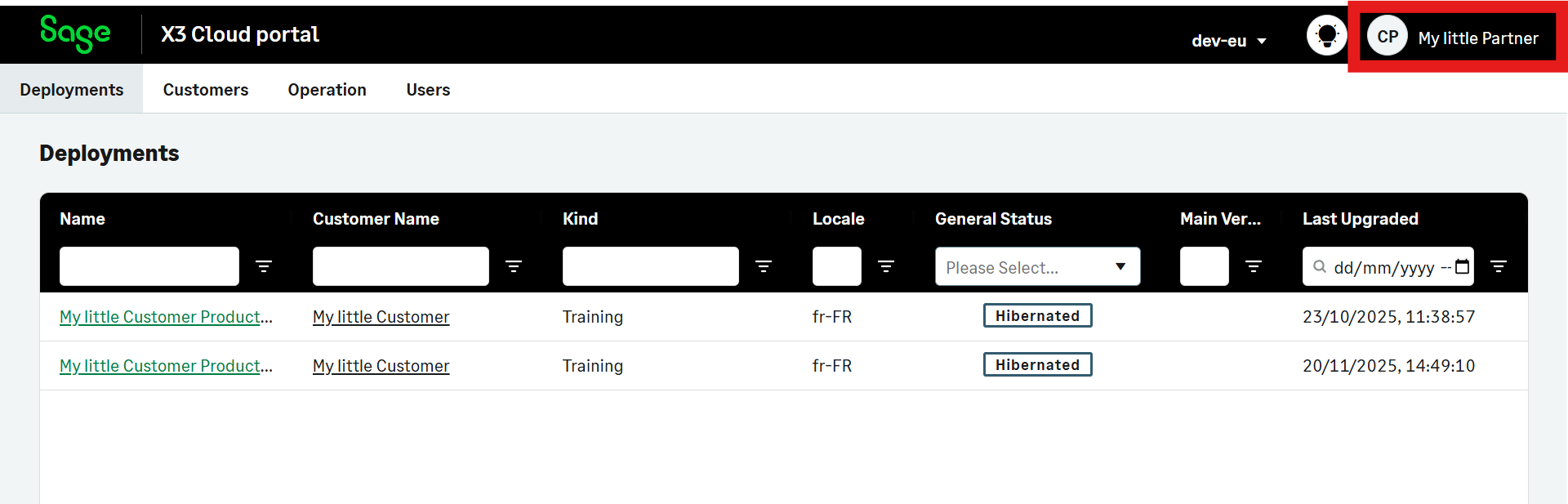
Profile information
Your profile includes:
-
Your admin name, used to create your first user account.
-
Your partner name (commercial name).
-
Your email address, used to create your first user account.
-
Your role (admin, manager or user). Find more information about roles and permissions below.
Privacy preferences
You can review and update your privacy and consent settings directly from your profile.
-
Open the profile menu.
-
Select Privacy preferences.

-
A window opens where you can manage your cookie and analytics consent.
-
Toggle each option ON or OFF depending on your preferences. You cannot toggle OFF the Strictly necessary cookies.
-
Select Accept selection to save your changes, Accept all to toggle ON all options, or Refuse to cancel your selection and exit the window.
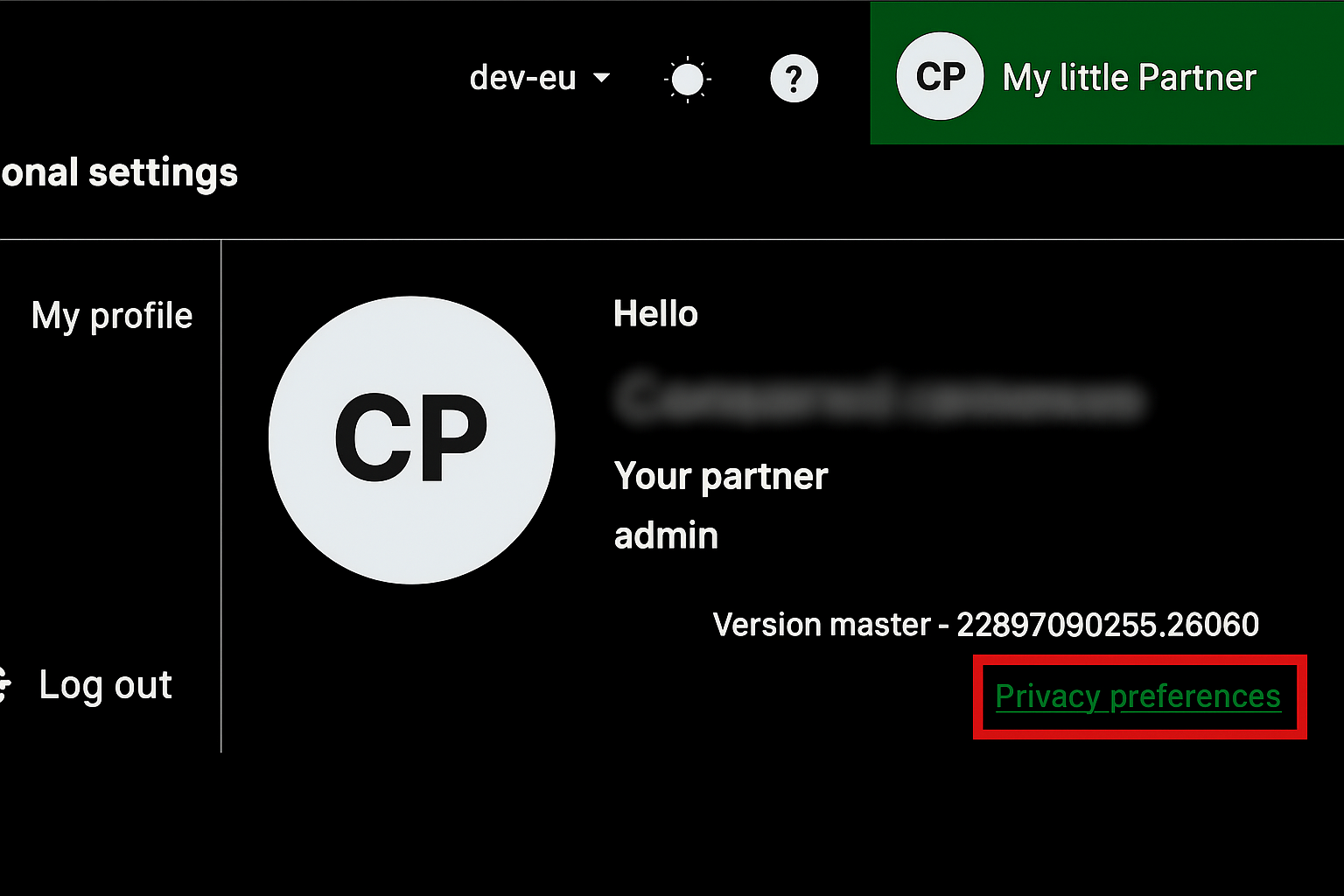
These preferences allow you to revisit and update consent you previously approved.
Role-based permissions
Your access to features depends on your assigned role:
| Role | Permissions |
|---|---|
| Administrator | Full access. An administrator has full control over users, licenses, FTPs, deployments, and accounts. |
| Manager | Operational oversight. A manager can monitor deployments and view logs but cannot make structural changes. |
| Viewer | Read-only. A viewer has access to customer and partner data but cannot perform any action. |
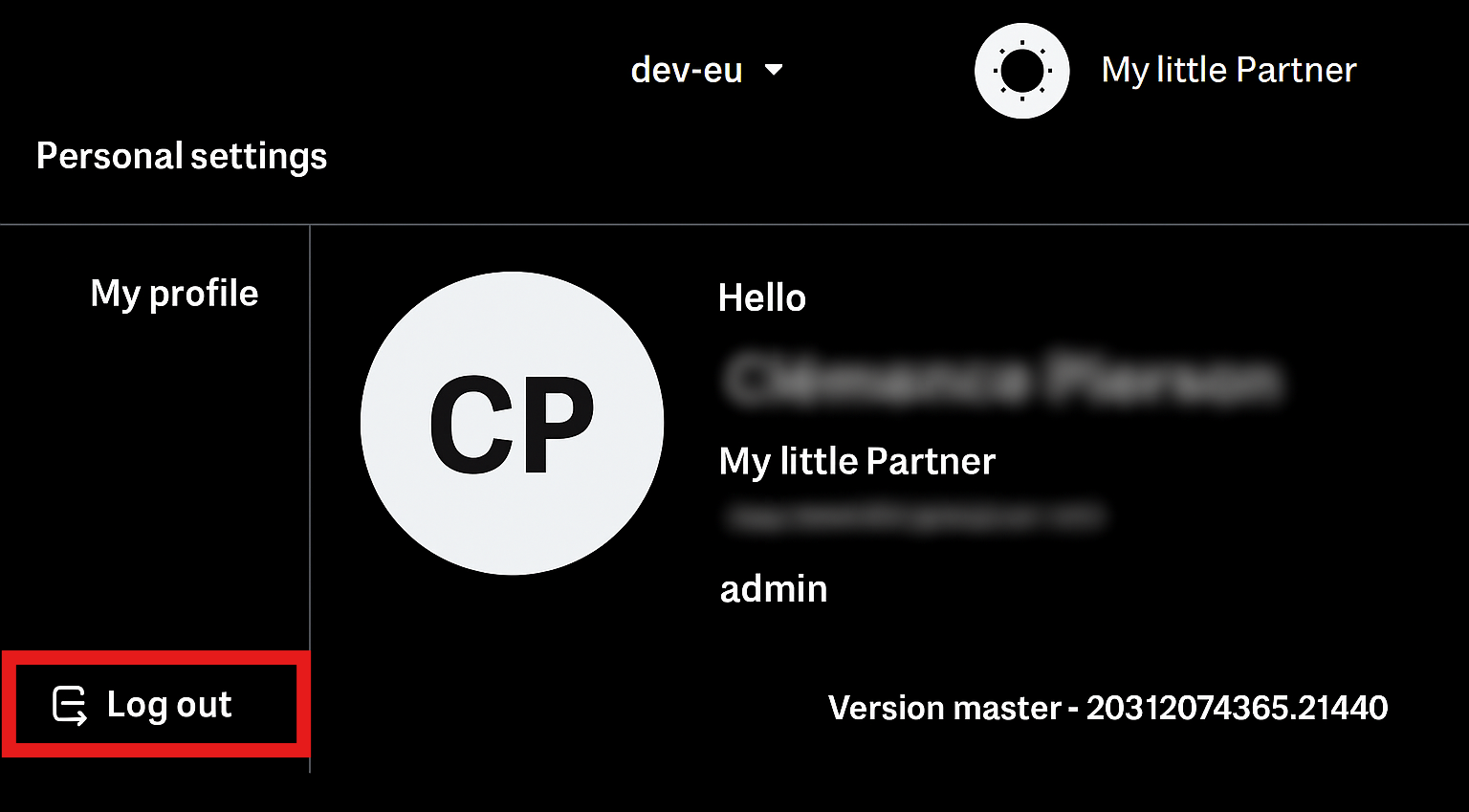
Log out
You can log out from your account from the profile information panel: